Choose how unknown callers are handled
Allow unknown callers to ring, silence them where Android supports it, or reject them. Choose the behavior that suits you, then adjust it when your needs change.
Personal call screening · Privacy focused
Your Calls – Your Rules.
A more personal way to screen your calls.
Put incoming-call choices in your hands. Set rules for unknown callers, keep your own number lists, and review screening decisions—with screening handled entirely on your phone.
Built around your choices
Choose how unfamiliar numbers are handled. Keep the exceptions that matter to you, and change your settings when life changes.
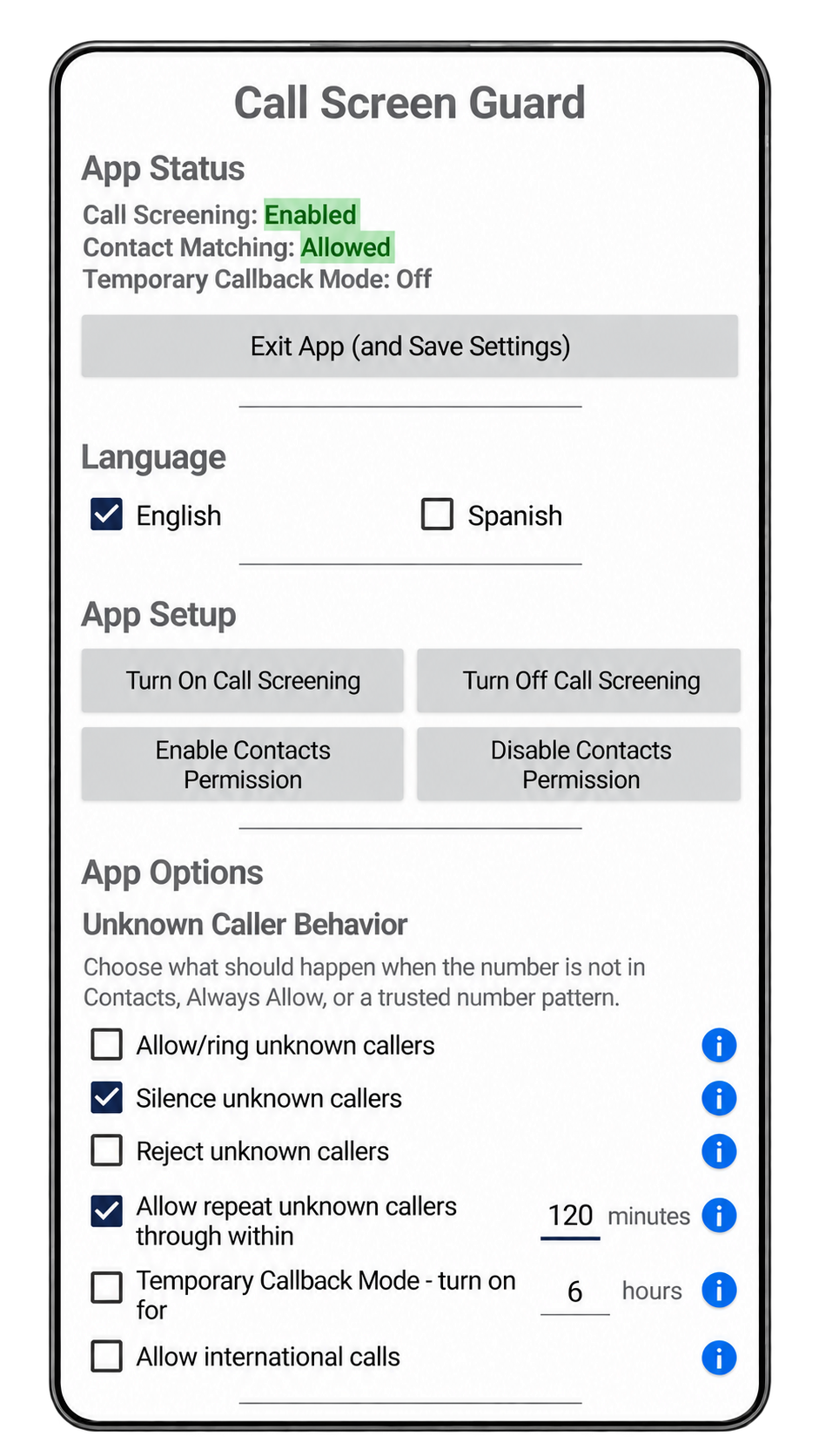
Allow unknown callers to ring, silence them where Android supports it, or reject them. Choose the behavior that suits you, then adjust it when your needs change.
Maintain separate Always Allow and Always Reject phone-number lists. Add allowed partial numbers for familiar prefixes or number patterns. While screening is enabled, the Always Reject list takes priority over other screening rules, including matches in Contacts.
Enable Contacts permission under App Setup to recognize incoming numbers saved in your phone’s contacts. Contact matching is optional, and the app’s other screening rules can work without it.
Set a time window in which repeat calls from an unknown number can get through. Numbers on your Always Reject list remain subject to rejection.
Turn on Temporary Callback Mode for a limited time when you expect a return call from an unknown number. During that period, unknown calls are allowed unless the number is on your Always Reject list.
Allow recognizable international calls through your screening settings. Number formatting supplied by your carrier can affect whether a call is recognized as international.
See each local screening decision and its reason in the app’s call screening log. Review, clear or print the log using the available controls, and manage your lists as your needs change.
Choose English or Spanish for the app’s controls, messages and screening log. Caller names and numbers are displayed as supplied by your phone or entered by you.
Open the ROMUR website, email support, read the Privacy Policy and Terms of Service, or visit the National Do Not Call Registry from the app’s Links section.
A look inside
Explore the app’s settings, lists and log controls in either language. Select a screen to enlarge it.
Understand your screening choices
Call Screen Guard applies the rules and lists you choose. The local log helps you see the result and the reason behind it.
Allow. Let permitted numbers ring through, subject to your phone’s other settings.
Silence. Quiet unknown calls on supported Android versions and devices.
Reject. Reject calls according to your preferences and Always Reject list.
Adjust. Change your lists, repeat-caller window or temporary callback settings as your needs change.
Know what is behind the call
Commercial spam-number databases can help identify known patterns, but they do not always reflect whether a particular call matters to you. A newly used number may not yet be flagged, a legitimate number can be mislabeled, and a spoofed caller can display someone else’s number. Your preferences may also differ from a shared list’s classification. Call Screen Guard offers a different approach: rules and personal lists you control. That approach has limits too—an unfamiliar legitimate caller can be silenced or rejected, and a spoofed number may match an allowed number.
FTC: How to block unwanted calls ↗Spoofing changes the name or number displayed on caller ID so a call appears local, familiar or connected to an organization you trust. The displayed number may belong to someone who has nothing to do with the call. Matching a number in Contacts or an allow list does not verify who is actually calling. If a caller asks for money or sensitive information, verify the request using a number you independently know is genuine.
FTC: Recognizing phone scams ↗A robocall delivers a recorded message instead of a live person. Automated dialing systems can place large volumes of calls using an existing list of numbers or, in some systems, generated number sequences. Recorded call outcomes can help operators identify numbers to try again. Some robocalls are legitimate informational messages; others are unwanted sales calls or scams. These dialing methods explain why an unfamiliar caller may reach your number even when you never knowingly supplied it to that caller.
FTC: Understanding robocalls ↗Privacy focused by design
Manage callers you do not want to hear from while keeping your app’s screening records on your device. The app uses the incoming-call information Android provides and, with your permission, checks your phone’s contacts.
Read the Call Screen Guard Privacy Policy →Your preferences, personal number lists and screening log are stored locally. The app does not upload them or your contacts to ROMUR or third parties.
The current app does not record call audio, access SMS, or include advertising or analytics SDKs.
Printing a log passes it to Android’s print service and your selected destination. Opening a website or sending support email uses a separate service with its own privacy practices.
Simple pricing
Call Screen Guard does not upload your contacts, screening log, settings or app usage data from your phone to ROMUR or third parties.
Google Play price in U.S. dollars · One-time purchase
Printing a log and opening external services are actions you choose. See the Privacy Policy for details.
No ads. No recurring charges. No in-app purchases.
Any updates we release for this app are included at no additional charge.
Available in the United States.
Get it on Google PlayGood to know
No. It applies your settings and number lists to incoming call information supplied by Android. It does not consult an external spam-number database, authenticate a caller’s identity, or guarantee that every unwanted call will be stopped.
Yes. An unknown caller may be someone you want to hear from. Review your settings and use the allow lists, repeat-caller option or Temporary Callback Mode when appropriate.
They may. Call handling varies by Android version, device, phone app and carrier. Rejecting a call does not guarantee that your carrier will prevent voicemail.
The app does not upload your contacts, screening log, preferences or app usage data to ROMUR or third parties. If you choose to print a log, its contents are passed to Android’s print service and the destination you select. External websites, email and Google Play operate under their own privacy practices.
Silencing calls requires Android 10 or later. Screening also depends on your phone, phone app, carrier and Android permissions. Older Android versions may not support the behavior you expect; check the compatibility shown on the Google Play listing.
No. Do not rely on Call Screen Guard to receive emergency, medical, legal, financial, work, delivery, school or other important calls.
Yes. Call Screen Guard is available in the U.S. on Google Play for a one-time purchase of $4.99.
These links open independent government websites. Their inclusion does not imply endorsement of Call Screen Guard.
Personal number lists, clear screening choices and a local log—all in one Android app.
Explore the app screens